> ## Documentation Index
> Fetch the complete documentation index at: https://docs.bubbl.so/llms.txt
> Use this file to discover all available pages before exploring further.
# Meta Pixel & Conversions Integration with Bubbl
> Easily connect your Meta Pixel and Conversions API to track and optimize your event marketing. Setup takes less than 3 minutes.
## What is Meta Pixel and Why It Matters?
The **Meta Pixel** is a tool from Meta that tracks what people do on your **Bubbl** pages—like **viewing**, **adding to cart**, or **buying**—so you can run **smarter**, **more targeted ads**.
* Track which ads drive sales, not just clicks.
* Find new buyers with lookalike audiences.
* Spend smarter by targeting people who are likely to convert.
## Where to Set It Up in Bubbl
1. Log in to [bubbl.so](https://bubbl.so/explore)
2. Go to your **Community**, then click on the specific **Event**
3. Click **Settings** in the sidebar
4. Scroll to the bottom of the page
5. Enter your **Pixel ID** and **Conversions API Access Token**
6. Hit \*\*Save Changes \*\*whenever you are done to save
## How to Get Your Meta Pixel ID
1. Go to [Meta Ads Manager](https://adsmanager.facebook.com/adsmanager)
2. Open **Events Manager**
3. Click **Connect Data Sources** → Select **Web** → Click **Connect**
4. Name your Pixel and (optionally) enter a website
5. Copy your **Pixel ID** from the dashboard
## How to Get a Conversions API Access Token
1. In **Events Manager**, select your Pixel
2. Go to the **Settings** tab
3. Scroll to the **Conversions API** section
4. Click **Generate Access Token**
5. Copy the token (Meta will not show it again)
*This token is tied to your Pixel, not to your user account.*
## How It Works?
Meta Pixels are set up in the Meta Business Console and connect to your Bubbl event.
Here’s how it works:
1. A customer visits your **event** or **organizer** page
2. The Pixel tracks the visit and sends the data to Meta
3. If they buy a ticket, that action is also reported to Meta
**Bubbl automatically tracks the following events:**
1. **PageView:** User visited an event page
* Properties:
* event\_id: unique identifier of the event
* event\_visibility: "public" or "private"
2. **AddToCart:** User added a ticket to his cart (ticket tier selected, bottom sheet opened)
* Properties:
* content\_ids: \[ticketId]
* content\_type: "product"
* value: Price of the ticket
* currency: \[EventCurrency]
* event\_id: unique identifier of the event
* event\_visibility: "public" or "private"
3. **InitiateCheckout:** User started an order (clicked “Continue” or "Apple Pay")
* Properties:
* num\_items: Quantity of Tickets
* value: Price of the ticket
* currency: \[EventCurrency]
* event\_id: unique identifier of the event
* event\_visibility: "public" or "private"
4. **AddPaymentInfo:** User entered payment information (Completed Stripe Form)
* Properties:
* payment\_method: "card"
* event\_id: unique identifier of the event
* event\_visibility: "public" or "private"
5. **Purchase:** User completed a purchase and has a valid order
* Properties:
* content\_ids: \[ticketId]
* content\_type: "product"
* value: Price of the ticket
* currency: \[EventCurrency]
* num\_items: Quantity of Tickets
* purchase\_id: unique purchase identifier
* event\_id: unique identifier of the event
* event\_visibility: "public" or "private"
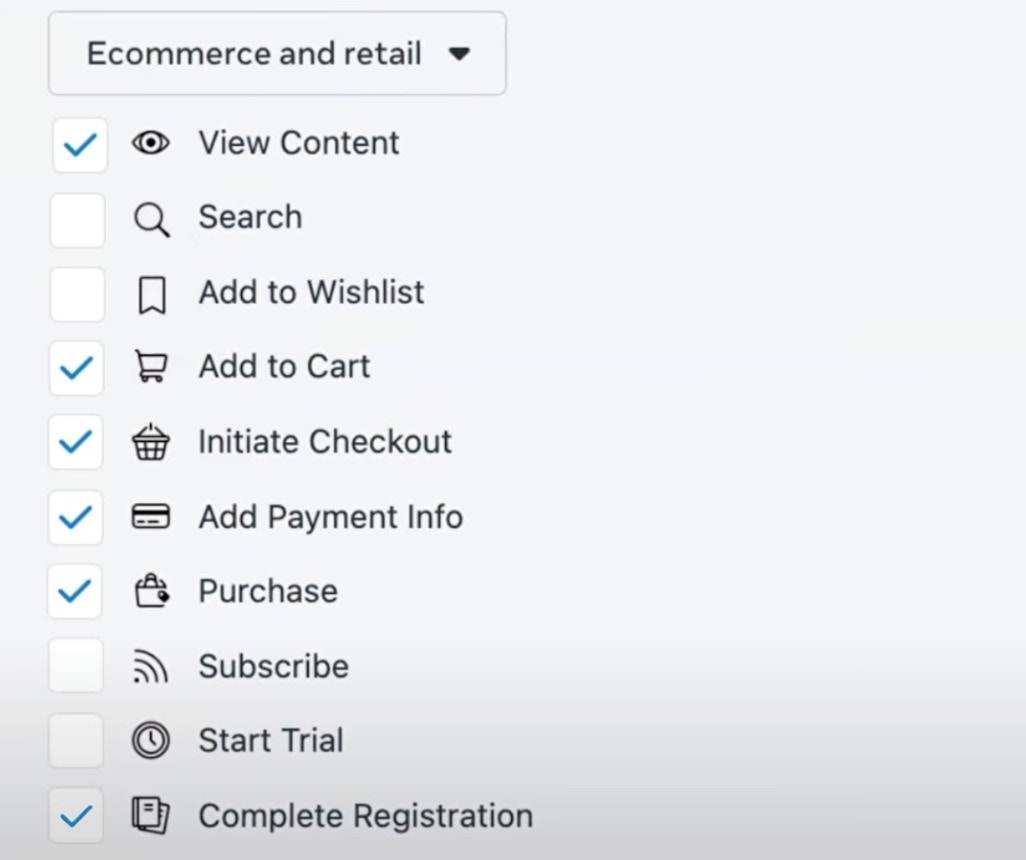
1. **ViewContent**: User viewed event details
* Properties:
* content\_ids: \[eventId]
* content\_type: "product"
* event\_id: unique identifier of the event
* event\_visibility: "public" or "private"
* source: "web" or "ios"
2. **AddToCart:** User added a ticket to his cart (ticket tier selected, bottom sheet opened)
* Properties:
* content\_ids: \[ticketId]
* content\_type: "product"
* value: Price of the ticket
* currency: "USD"
* event\_id: unique identifier of the event
* event\_visibility: "public" or "private"
* source: "web" or "ios"
3. **InitiateCheckout:** User started an order (clicked “Continue” or "Apple Pay")
* Properties:
* num\_items: Quantity of tickets
* value: Total value of cart
* currency: "USD"
* event\_id: unique identifier of the event
* event\_visibility: "public" or "private"
* source: "web" or "ios"
4. **AddPaymentInfo:** User entered payment information (Completed Stripe Form)
* Properties:
* payment\_method: "card"
* event\_id: unique identifier of the event
* event\_visibility: "public" or "private"
* source: "web" or "ios"
5. **Purchase:** User completed a purchase and has a valid order
* Properties:
* content\_ids: \[ticketId]
* content\_type: "product"
* value: Price of the ticket
* currency: \[EventCurrency]
* num\_items: Quantity of Tickets
* purchase\_id: unique purchase identifier
* event\_id: unique identifier of the event
* event\_visibility: "public" or "private"
6. **CompleteRegistration**: User signed up in Bubbl
* Properties:
* user\_id: User Identifier
 1. **ViewContent**: User viewed event details
* Properties:
* content\_ids: \[eventId]
* content\_type: "product"
* event\_id: unique identifier of the event
* event\_visibility: "public" or "private"
* source: "web" or "ios"
2. **AddToCart:** User added a ticket to his cart (ticket tier selected, bottom sheet opened)
* Properties:
* content\_ids: \[ticketId]
* content\_type: "product"
* value: Price of the ticket
* currency: "USD"
* event\_id: unique identifier of the event
* event\_visibility: "public" or "private"
* source: "web" or "ios"
3. **InitiateCheckout:** User started an order (clicked “Continue” or "Apple Pay")
* Properties:
* num\_items: Quantity of tickets
* value: Total value of cart
* currency: "USD"
* event\_id: unique identifier of the event
* event\_visibility: "public" or "private"
* source: "web" or "ios"
4. **AddPaymentInfo:** User entered payment information (Completed Stripe Form)
* Properties:
* payment\_method: "card"
* event\_id: unique identifier of the event
* event\_visibility: "public" or "private"
* source: "web" or "ios"
5. **Purchase:** User completed a purchase and has a valid order
* Properties:
* content\_ids: \[ticketId]
* content\_type: "product"
* value: Price of the ticket
* currency: \[EventCurrency]
* num\_items: Quantity of Tickets
* purchase\_id: unique purchase identifier
* event\_id: unique identifier of the event
* event\_visibility: "public" or "private"
6. **CompleteRegistration**: User signed up in Bubbl
* Properties:
* user\_id: User Identifier
1. **ViewContent**: User viewed event details
* Properties:
* content\_ids: \[eventId]
* content\_type: "product"
* event\_id: unique identifier of the event
* event\_visibility: "public" or "private"
* source: "web" or "ios"
2. **AddToCart:** User added a ticket to his cart (ticket tier selected, bottom sheet opened)
* Properties:
* content\_ids: \[ticketId]
* content\_type: "product"
* value: Price of the ticket
* currency: "USD"
* event\_id: unique identifier of the event
* event\_visibility: "public" or "private"
* source: "web" or "ios"
3. **InitiateCheckout:** User started an order (clicked “Continue” or "Apple Pay")
* Properties:
* num\_items: Quantity of tickets
* value: Total value of cart
* currency: "USD"
* event\_id: unique identifier of the event
* event\_visibility: "public" or "private"
* source: "web" or "ios"
4. **AddPaymentInfo:** User entered payment information (Completed Stripe Form)
* Properties:
* payment\_method: "card"
* event\_id: unique identifier of the event
* event\_visibility: "public" or "private"
* source: "web" or "ios"
5. **Purchase:** User completed a purchase and has a valid order
* Properties:
* content\_ids: \[ticketId]
* content\_type: "product"
* value: Price of the ticket
* currency: \[EventCurrency]
* num\_items: Quantity of Tickets
* purchase\_id: unique purchase identifier
* event\_id: unique identifier of the event
* event\_visibility: "public" or "private"
6. **CompleteRegistration**: User signed up in Bubbl
* Properties:
* user\_id: User Identifier