> ## Documentation Index
> Fetch the complete documentation index at: https://docs.bubbl.so/llms.txt
> Use this file to discover all available pages before exploring further.
# Team Management
> Manage who helps you run the event — from full admins to scanners and co-organizing communities.
 ### Team Roles
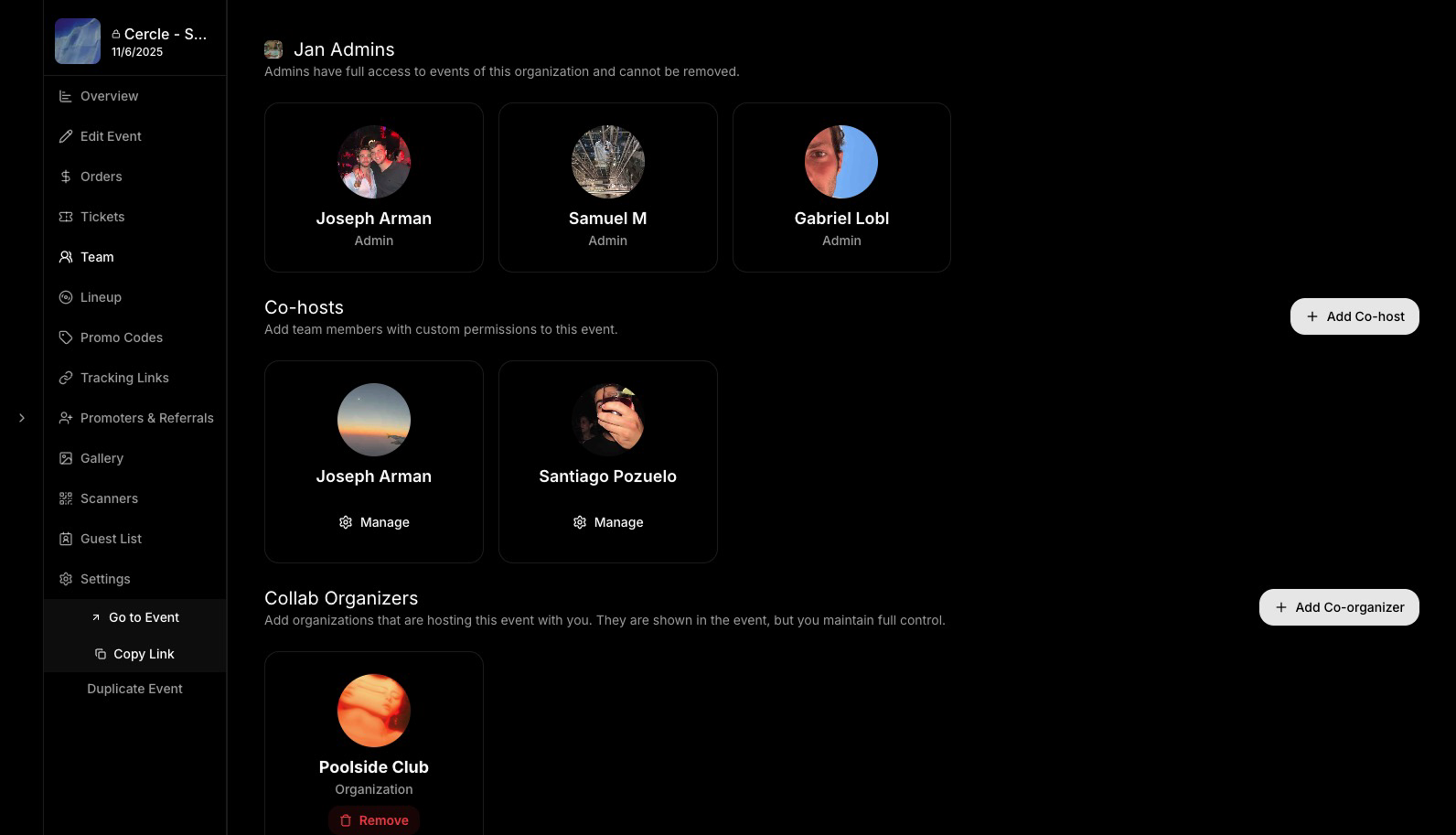
* **Admins:** All the admins of your organization, full access to your event.
* **Co-Hosts:** Individual users you add for specific events. You can assign them exactly the permissions you want.
* **Collab Organizers:** Other organizations you are collaborating with. Shown in the event view but does not give them access to anything.
Co-organizers cannot manage the event unless granted additional permissions. More permission settings coming soon.
### Adding a Co-Host
### Team Roles
* **Admins:** All the admins of your organization, full access to your event.
* **Co-Hosts:** Individual users you add for specific events. You can assign them exactly the permissions you want.
* **Collab Organizers:** Other organizations you are collaborating with. Shown in the event view but does not give them access to anything.
Co-organizers cannot manage the event unless granted additional permissions. More permission settings coming soon.
### Adding a Co-Host
 1. Click **“Add CoHost”** in the Team page
2. **Search** for the person you want to add (must be a Bubbl user)
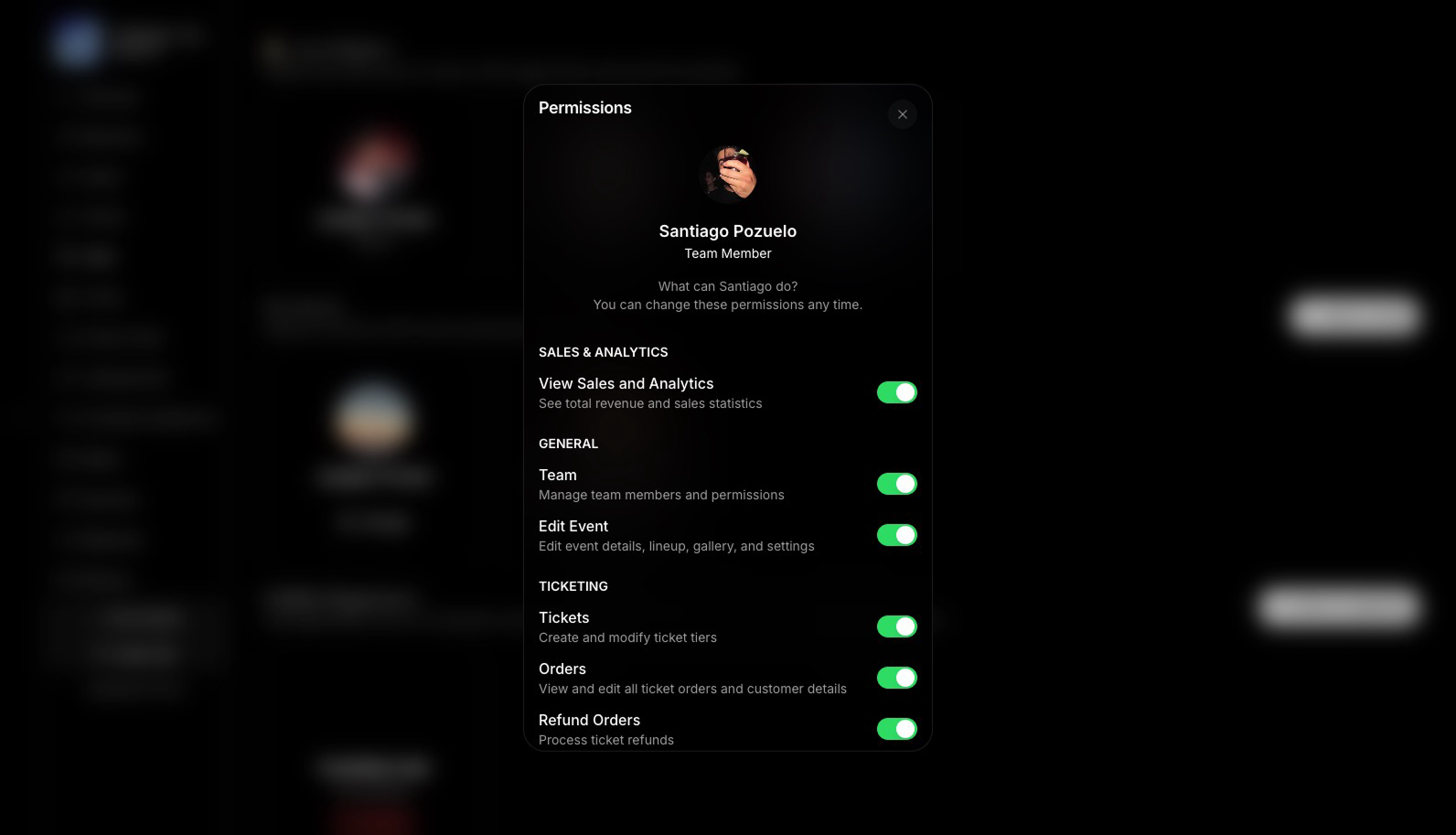
3. When adding, you can**Edit Permissions**
4. The new member will receive a push notification and have access to a customized **Manage Event** view.
All added team members (co-hosts or scanners) will have access based on their role.
### Removing a Team Member
You can always edit or revoke someone’s access from the app or the web.
1. Click **“Add CoHost”** in the Team page
2. **Search** for the person you want to add (must be a Bubbl user)
3. When adding, you can**Edit Permissions**
4. The new member will receive a push notification and have access to a customized **Manage Event** view.
All added team members (co-hosts or scanners) will have access based on their role.
### Removing a Team Member
You can always edit or revoke someone’s access from the app or the web.