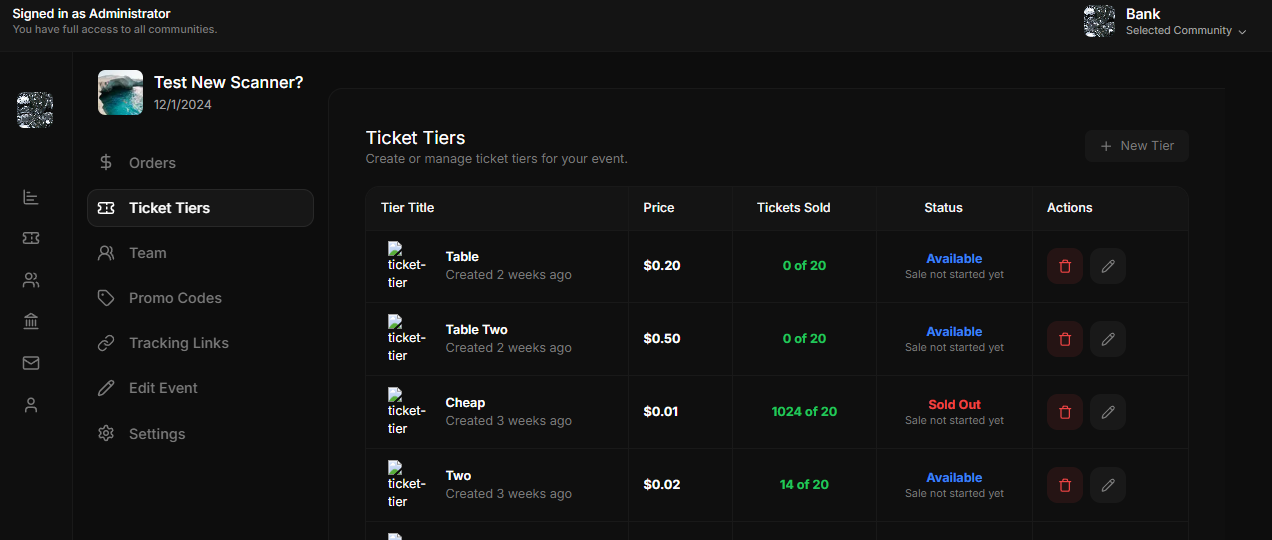
Skip to main contentThe Ticket Tiers Management page allows event organizers to create, edit, and manage ticket tiers for their events. This feature enables full customization of ticket options to suit different pricing strategies and audience preferences. Below are the main features, including detailed instructions on how to create a new tier.
Features
Tier Details
- Tier Title: The name of the ticket tier (e.g., “Table”, “Cheap”, “VIP”).
- Price: Displays the cost of a single ticket in each tier.
- Tickets Sold: Indicates the number of tickets sold out of the total available for that tier (e.g.,
0 of 20).
- Status:
- Available: Tickets in this tier are ready for sale.
- Sold Out: All tickets in this tier have been sold.
- Additional messages for sale status (e.g., “Sale not started yet”) provide more context.
Actions
- Edit Tier: The pencil icon allows organizers to modify tier details, such as title, price, and ticket quantity.
- Remove Tier: The trash icon enables organizers to delete a tier entirely.
Creating a New Tier
To create a new ticket tier, follow these steps:
- Click the “New Tier” Button: Located at the top-right corner of the page.
- Fill in the Tier Details:
- Title (Required): Enter a name for the tier (e.g., “General Admission”).
- Price (Required): Set the ticket price. Use
$0 for free admission.
- Available Quantity (Required): Specify the total number of tickets available for this tier.
- Description: Add a brief description (e.g., “This is a general admission ticket”).
- Set Ticket Type and Purchase Limits:
- Min Purchases: Set the minimum number of tickets a customer can purchase.
- Max Purchases: Set the maximum number of tickets a customer can purchase.
- Schedule Sales:
- Sales Start: Pick a date when the ticket sales should begin. Leave blank for immediate availability.
- Sales End: Pick a date when the ticket sales should end. Leave blank for the event’s end date.
- Advanced Options:
- Hide Tier: Toggle this on to make the tier invisible to customers until it’s ready for sale.
- Mark as Sold Out: Manually mark the tier as sold out.
- Requires Approval: Toggle this on if you want to review and approve each purchase manually.
- Password Protected: Set this to require a password for customers to access this tier.
- Save the Tier:
- Click the Create Tier button to save your new ticket tier.
Additional Functionalities
- Real-Time Updates: Changes to ticket tiers, such as pricing or availability, are reflected instantly.
- Dynamic Status: Ticket statuses update automatically as sales progress.