
What is Meta Pixel and Why It Matters?
The Meta Pixel is a tool from Meta that tracks what people do on your Bubbl pages—like viewing, adding to cart, or buying—so you can run smarter, more targeted ads.- Track which ads drive sales, not just clicks.
- Find new buyers with lookalike audiences.
- Spend smarter by targeting people who are likely to convert.
Where to Set It Up in Bubbl
- Log in to bubbl.so
- Go to your Community, then click on the specific Event
- Click Settings in the sidebar
- Scroll to the bottom of the page
- Enter your Pixel ID and Conversions API Access Token
- Hit **Save Changes **whenever you are done to save
How to Get Your Meta Pixel ID
- Go to Meta Ads Manager
- Open Events Manager
- Click Connect Data Sources → Select Web → Click Connect
- Name your Pixel and (optionally) enter a website
- Copy your Pixel ID from the dashboard
How to Get a Conversions API Access Token
- In Events Manager, select your Pixel
- Go to the Settings tab
- Scroll to the Conversions API section
- Click Generate Access Token
- Copy the token (Meta will not show it again)
How It Works?
Meta Pixels are set up in the Meta Business Console and connect to your Bubbl event. Here’s how it works:- A customer visits your event or organizer page
- The Pixel tracks the visit and sends the data to Meta
- If they buy a ticket, that action is also reported to Meta
- Meta Pixel
- Conversions API
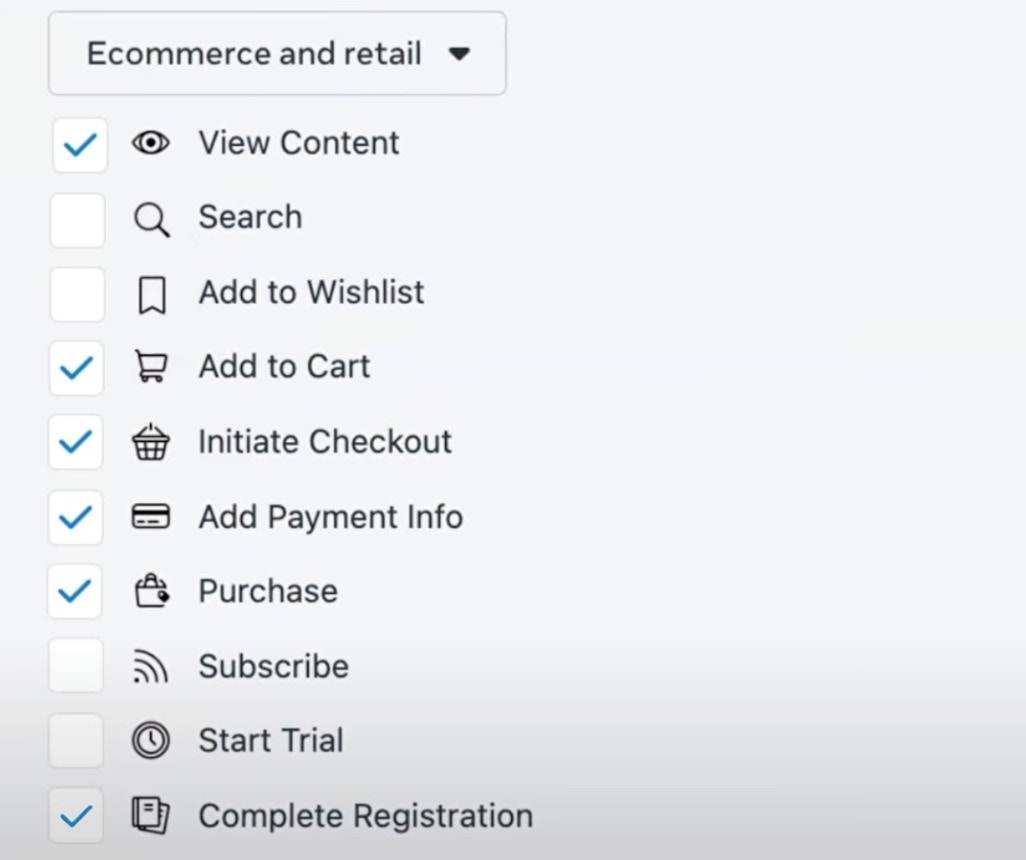
- PageView: User visited an event page
- Properties:
- event_id: unique identifier of the event
- event_visibility: “public” or “private”
- Properties:
- AddToCart: User added a ticket to his cart (ticket tier selected, bottom sheet opened)
- Properties:
- content_ids: [ticketId]
- content_type: “product”
- value: Price of the ticket
- currency: [EventCurrency]
- event_id: unique identifier of the event
- event_visibility: “public” or “private”
- Properties:
- InitiateCheckout: User started an order (clicked “Continue” or “Apple Pay”)
- Properties:
- num_items: Quantity of Tickets
- value: Price of the ticket
- currency: [EventCurrency]
- event_id: unique identifier of the event
- event_visibility: “public” or “private”
- Properties:
- AddPaymentInfo: User entered payment information (Completed Stripe Form)
- Properties:
- payment_method: “card”
- event_id: unique identifier of the event
- event_visibility: “public” or “private”
- Properties:
- Purchase: User completed a purchase and has a valid order
- Properties:
- content_ids: [ticketId]
- content_type: “product”
- value: Price of the ticket
- currency: [EventCurrency]
- num_items: Quantity of Tickets
- purchase_id: unique purchase identifier
- event_id: unique identifier of the event
- event_visibility: “public” or “private”
- Properties: